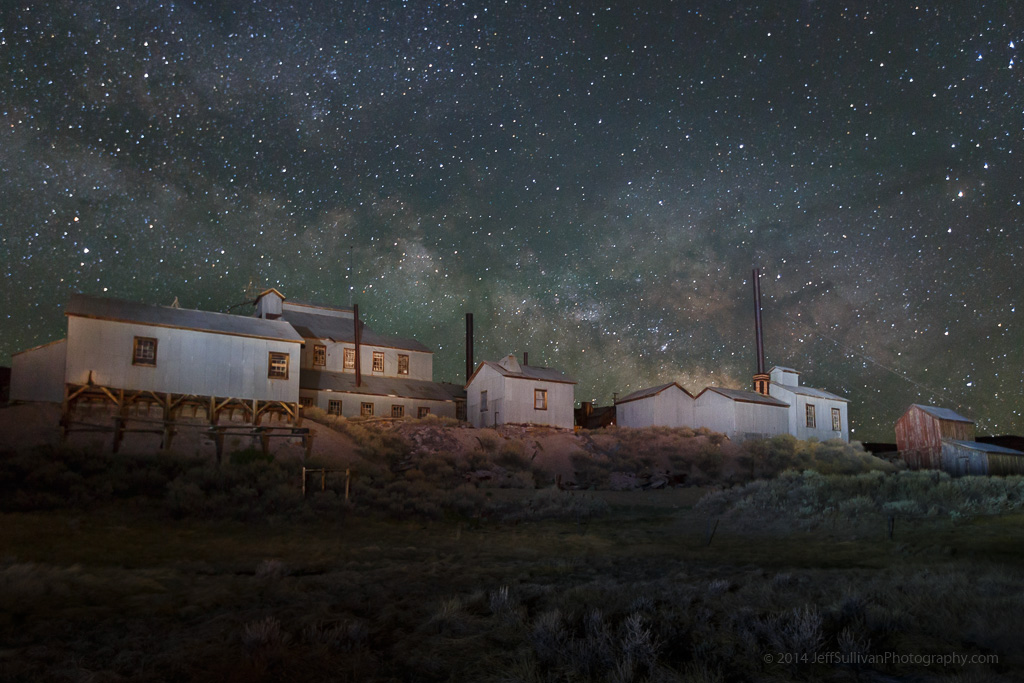
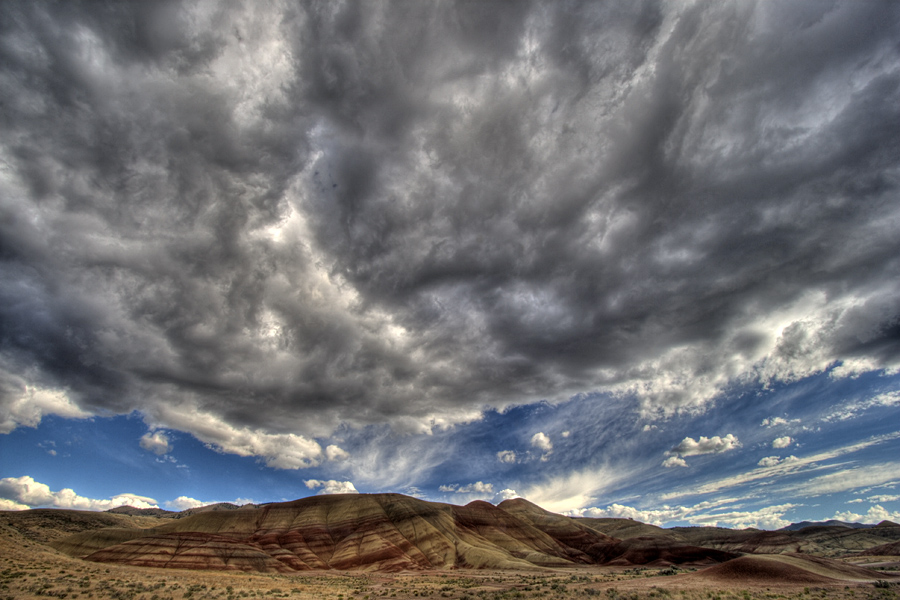
Vanishing Water, originally uploaded by Jeffrey Sullivan.
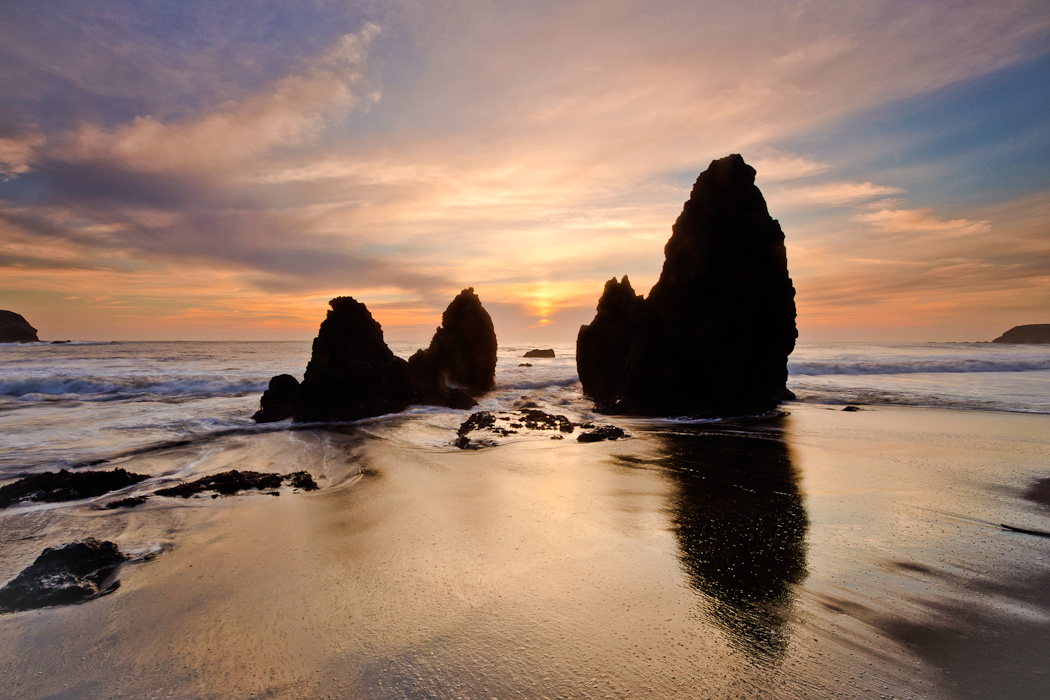 |
| Rodeo Beach, Marin County, California |
I shoot in RAW and find Lightroom to be an excellent way to process files for many different shooting scenarios. The key is Lightroom having been designed from the start to facilitate operating on multiple files, such as its ability to copy development settings from one edited file and apply them to any similar images in the batch you're editing. It's also easy to use, so you don't need a bunch of obscure keyboard commands and you don't need to record scripts like Photoshop users always seem to be doing to create a given effect. At the highest level, my approach is this: for the images that I consider HDR potentially useful for, I simply perform the most basic adjustments like white balance adjustment, dust removal and some noise reduction, then convert these low noise, color-corrected images to JPG prior to performing HDR techniques. Using JPG images as input to the HDR process is exactly the approach recommended by HDRsoft for their Phototomatix software.
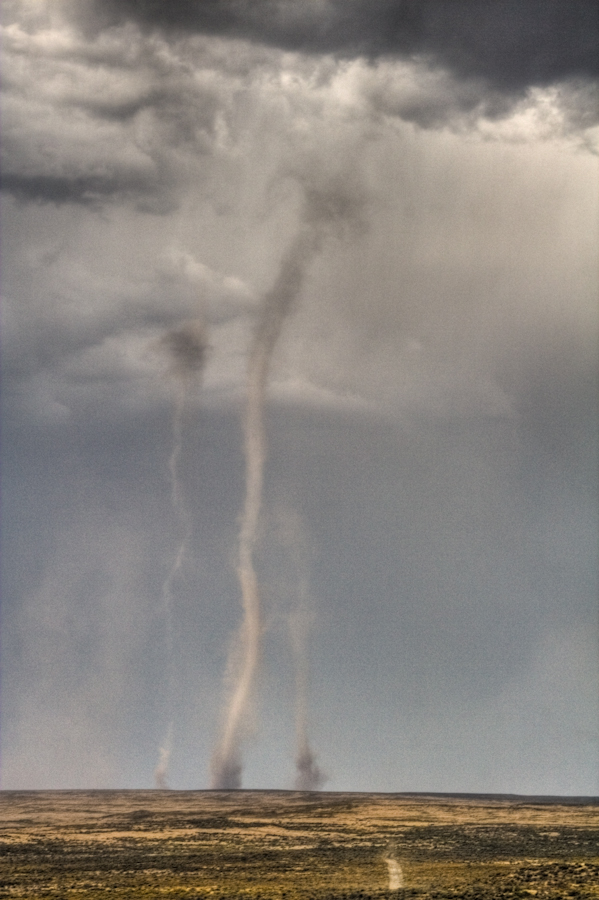 |
| Single exposure HDR. Deeth, Nevada |
On my Canon 5D mark II my default spacing is +/- 1 1/3 stops between exposures, but I also bias the whole sequence 2/3 stop darker (using exposure compensation at -2/3 EV). Therefore I end up with exposures a -2 EV, -2/3 EV and +2/3 EV. My Canon 40D doesn't quite have the same dynamic range nor does it have noise levels so low, so I may use -1/3 exposure compensation and shoot an Automatic Exposure Bracketing sequence of +/-1 stop. Either way, I examine the results and adjust my approach to the shooting conditions.
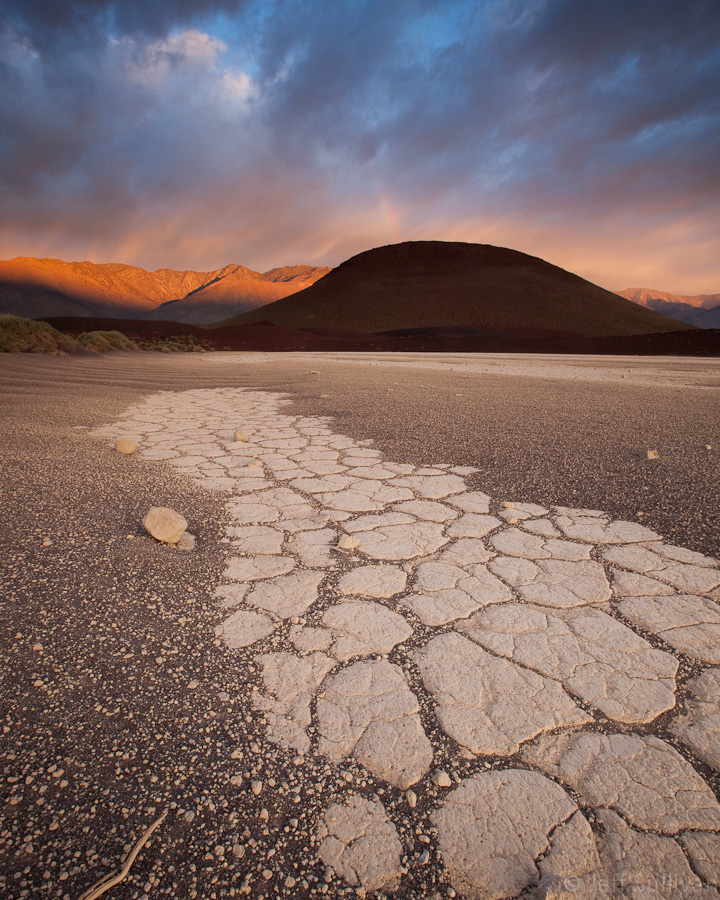 |
| 3-exposure HDR. Sunrise rainbow, Eastern Sierra. |
Knowing that I'm using HDR for texture affects my shooting choices. For example, I may tune my bracketing sequence to provide three specific textures to flowing water. The speeds I require very depending upon how fast the water is moving (waves vs. streams vs. waterfalls), with different ranges of shutter speeds useful for different water speeds (such as different waterfall heights).
So my workflow starts with a RAW file in Lightroom receiving basic adjustments and getting saved to JPEG. Then Photomatix 4.0 does some initial processing and shows previews of how the result will turn out using something like 8 different techniques. This new feature makes it easy to pick one of the more natural renderings, one of the more unreal ones, or take over and fine tune the settings to get what you want. When done with the HDR processing, I save a 16-bit TIFF file.
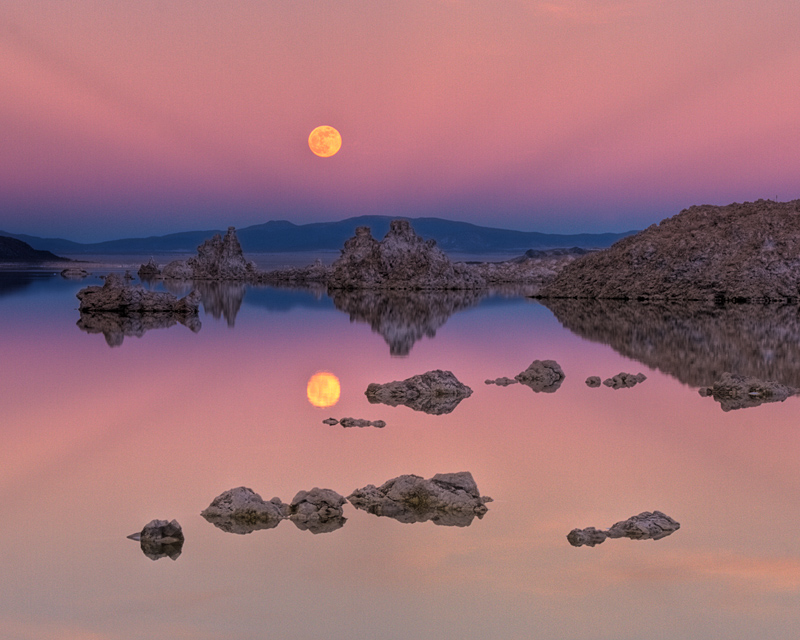 |
| 3-exposure HDR. Mono Lake, California. |
In Lightroom go to Library mode, simply hover your mouse over the folder name where the new TIFF files were saved, and (on a Windows PC) your right mouse button will reveal a menu with the Synchronize Folder commmand which will go find your new files and import them into Lightroom so you can make fine tuning adjustments to color, contrast, vignetting and so on.
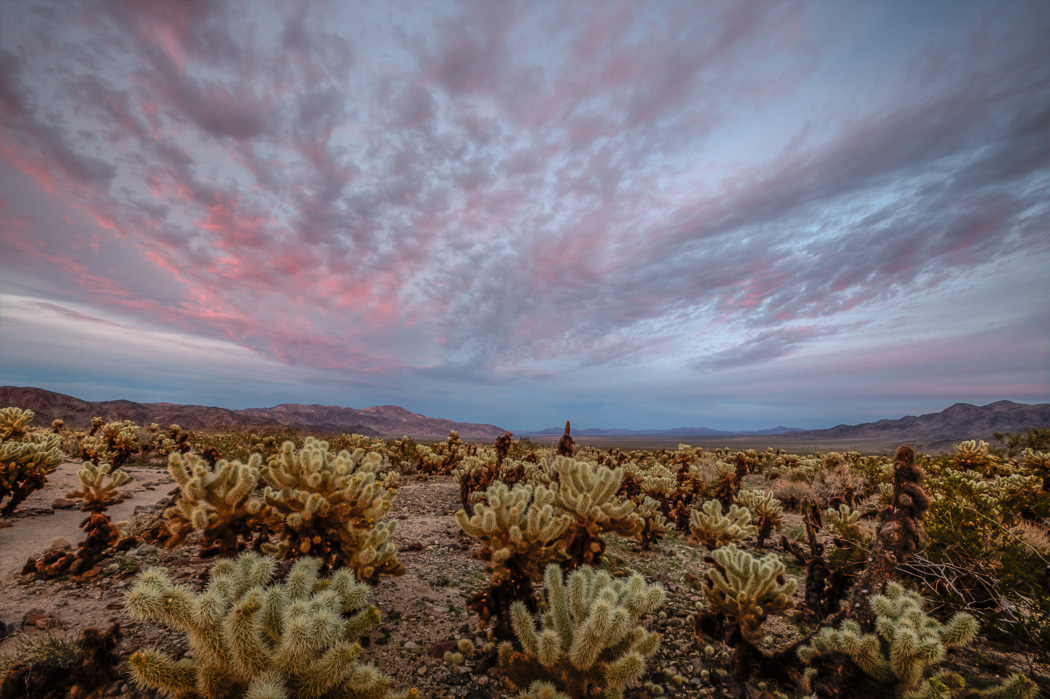 |
| 3-exposure HDR. Joshua Tree National Park. |
For anyone not using Lightroom yet, you can download a copy at Adobe.com and use it in free trial mode for 30 days. The latest Photomatix 4.0 is useful to revisit if you tried or currently use a prior version. It's available at HDRsoft.com (it adds watermarks to your images, but if you buy a license later you can easily remove the watermarks, at least from the processed TIFF files output by Photomatix).
I have an HDR set here where you can see how various combinations of Lightroom and Photomatix have produced various results over the years: http://www.flickr.com/photos/jeffreysullivan/sets/72157622008543219/
 |
| Wacky tone-mapped HDR from an earlier version of Photomatix. |
If you decide to buy Photomatix HDR software, I do recommend the version with an interface to Lightroom and Photoshop, to give you the most efficient workflow. You can get a 15% discount by using the coupon code JeffSullivan when you by it from its publisher HDRsoft: http://www.hdrsoft.com/order.php